DICOM Tools
This page provides an overview of utility tools available in the DICOM Tools module, designed to assist with connectivity testing, querying, and status monitoring of DICOM servers. These tools enable users to:
- Test DICOM node availability using DICOM Echo
- Query a DICOM Worklist and display results
- Monitor multiple DICOM nodes using DICOM Echo and WADO protocols
The different modules are accessed through tabs at the top of the page.
Info
Currently, the persistence of DICOM nodes and worklists is not supported. Configured nodes and worklists come from CSV files that are loaded when the Karnak server starts.
DICOM Echo
This tool tests DICOM communication between two Application Entity Titles (AETs).
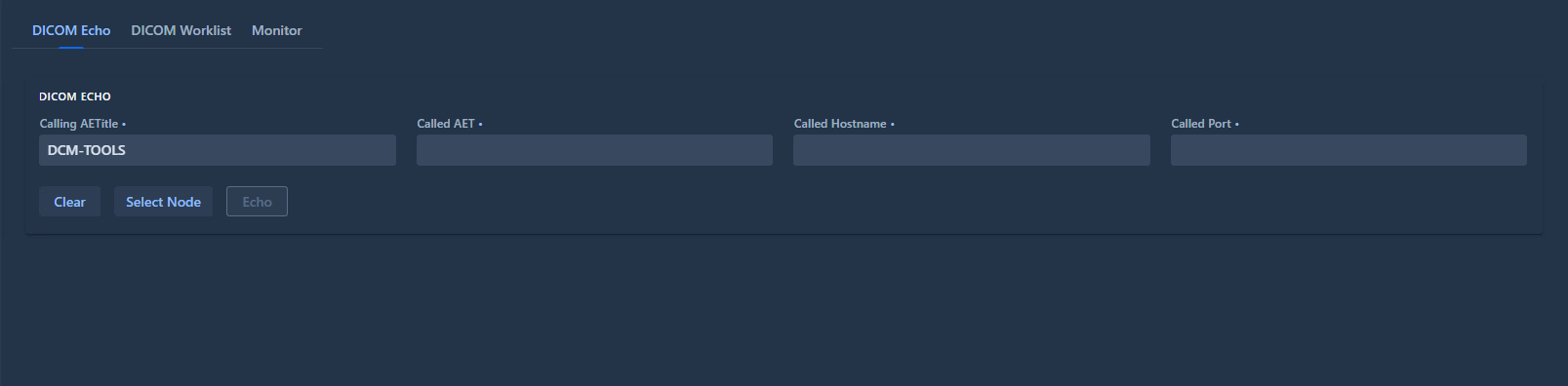
Configuration Fields
The following fields must be configured to execute an Echo test:
| Field | Description | Required |
|---|---|---|
| Calling AETitle | Identity of the calling DICOM entity | Yes |
| Called AETitle | Identity of the DICOM entity to test | Yes |
| Called Hostname | Hostname or IP address of the DICOM node | Yes |
| Called Port | Port number of the DICOM node | Yes |
All fields are mandatory to execute the Echo test.
Running the Test
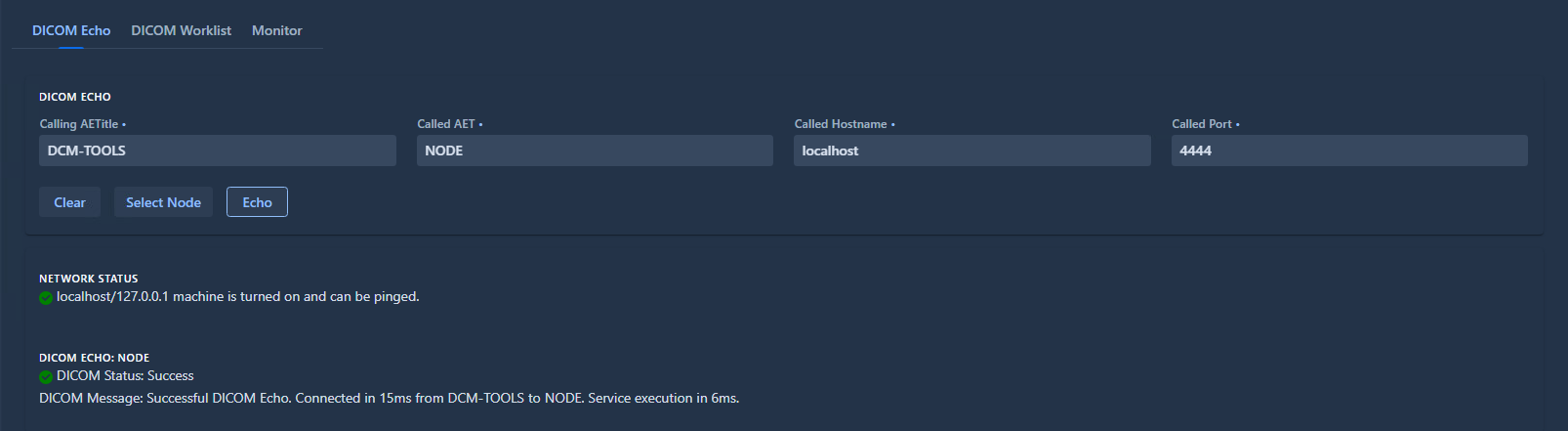
Click the Echo button to launch the connectivity test and DICOM Echo command.
Successful Test
Below is an example of a successful DICOM Echo test:
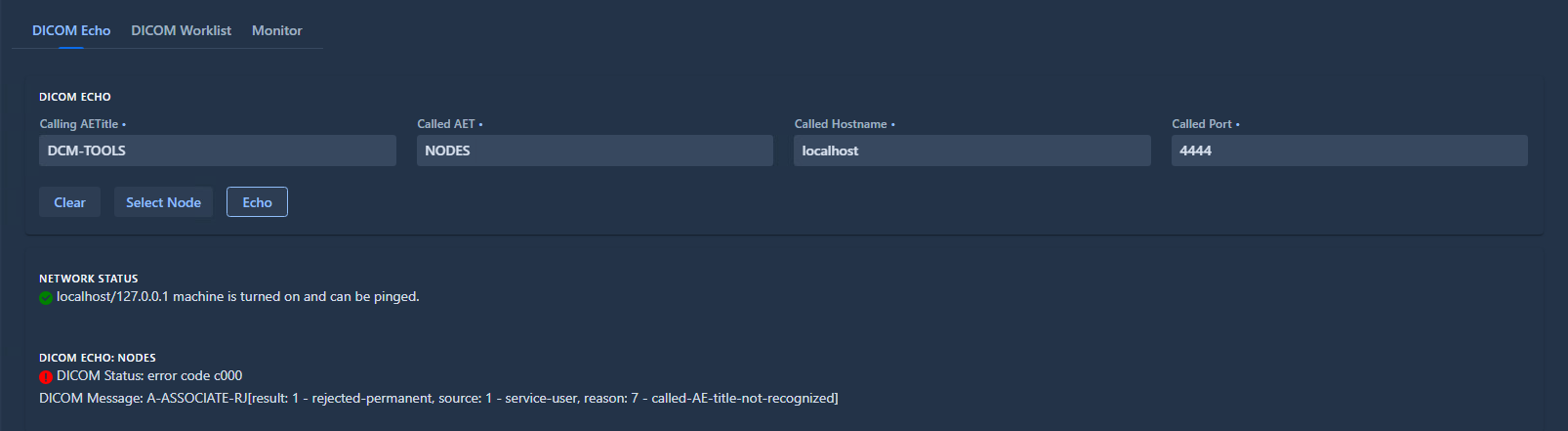
Failed Test
In this example, the “Called AETitle” value is intentionally incorrect. The network connectivity test succeeds, but the DICOM Echo fails, displaying the reason for the failure:
Select Node Utility
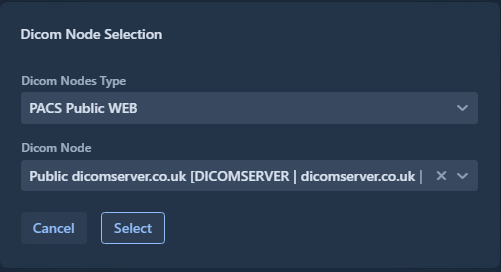
The Select Node popup simplifies configuration by allowing you to choose from pre-configured DICOM nodes.
Click the Select Node button to open the popup:
Configuration:
- Choose the node type in the DICOM Nodes Type field
- The DICOM Node dropdown updates automatically based on the selected type
- Filter nodes by typing in the field (searches AET, hostname, port, or description)
- Click Select to auto-fill the Called AETitle, Called Hostname, and Called Port fields

DICOM Worklist
This tool retrieves and displays the content of a DICOM Worklist to test connectivity and data retrieval.
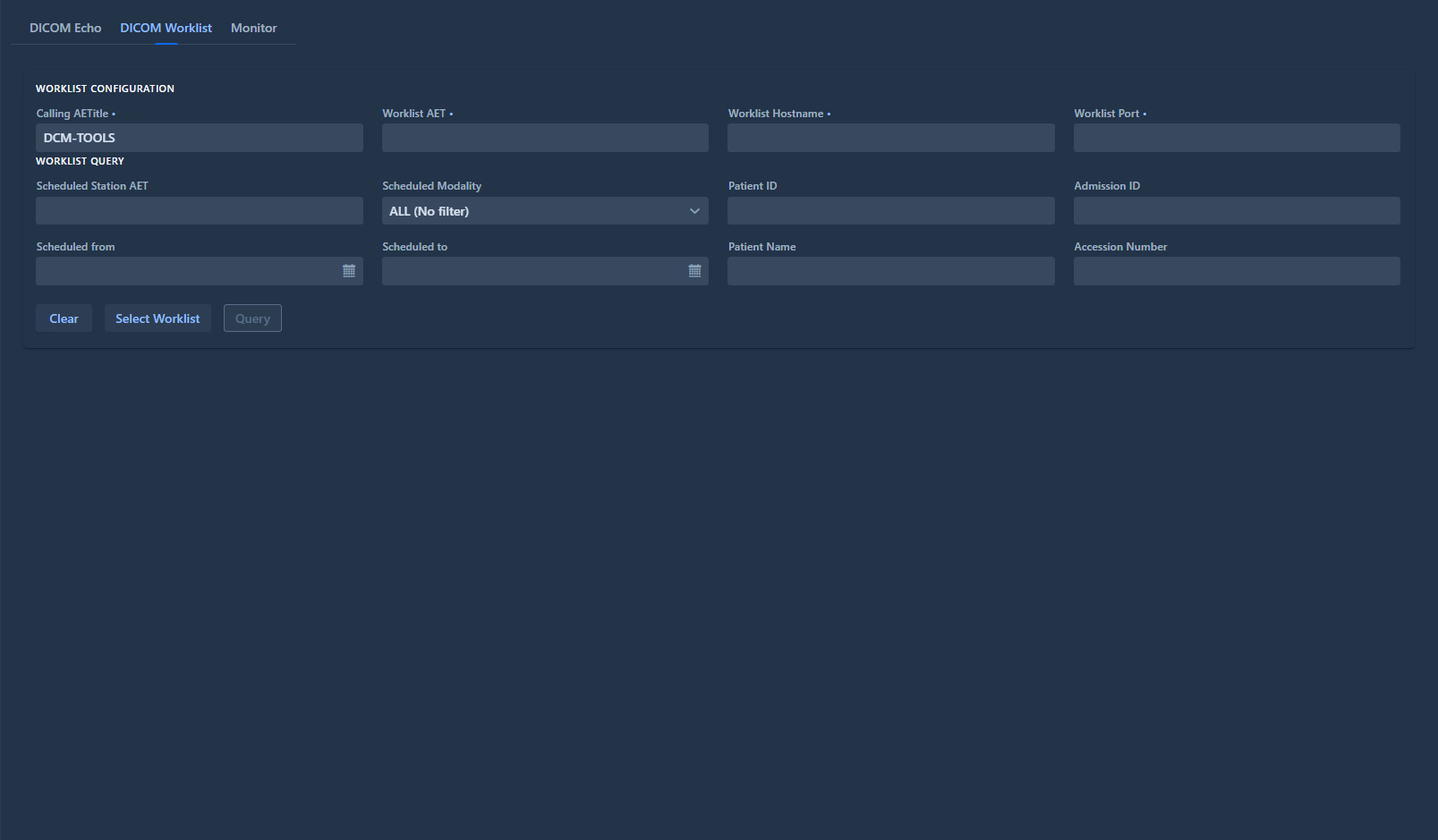
Worklist Configuration
Configure the following fields to connect to a worklist:
| Field | Description | Required |
|---|---|---|
| Calling AETitle | Identity of the calling DICOM entity | Yes |
| Worklist AET | Identity of the worklist to query | Yes |
| Worklist Hostname | Hostname or IP address of the worklist | Yes |
| Worklist Port | Port number of the worklist | Yes |
All fields are mandatory to retrieve worklist content.
Worklist Query Filters
Additional optional fields are available to filter the results returned by the worklist:
- If no filters are specified, all worklist entries are retrieved
- Multiple filters can be combined to narrow results
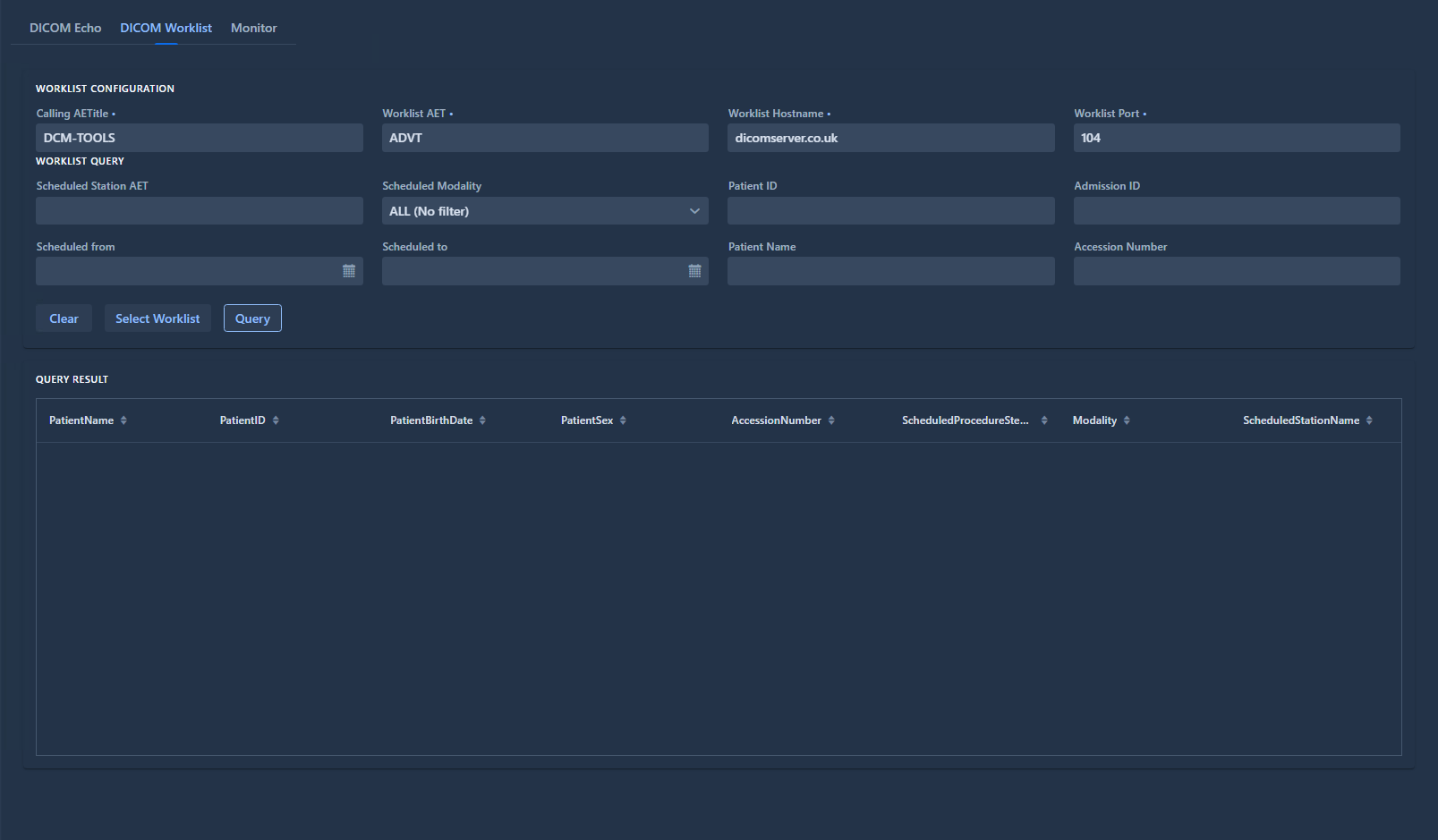
Query Results
Click the Query Worklist button to execute the test and retrieve data.
Retrieved worklist data is displayed in a sortable table. Click any column header to sort by that column:
Select Worklist Utility
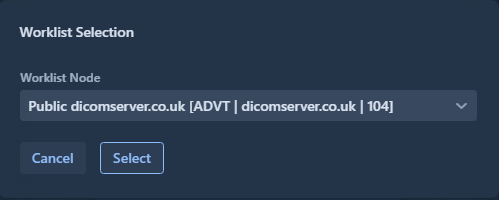
The Select Worklist popup allows you to choose from pre-configured worklists.
Click the Select Worklist button to open the popup:
Configuration:
- Browse the list of available worklists
- Filter by typing in the search field (searches AET, hostname, port, or description)
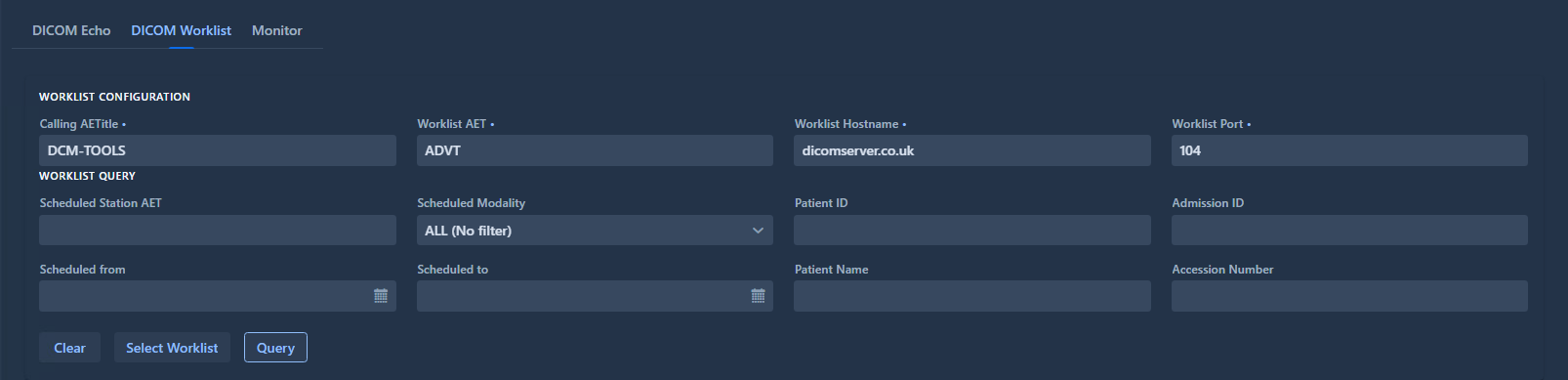
- Click Select to auto-fill the Worklist AET, Worklist Hostname, and Worklist Port fields
Monitor
This tool monitors the status of DICOM nodes using both DICOM and WADO protocols, allowing you to verify connectivity and service availability.
DICOM Echo Monitoring
To test a DICOM node:
- Select a DICOM node from the list
- Click the Check button to launch the DICOM Echo test
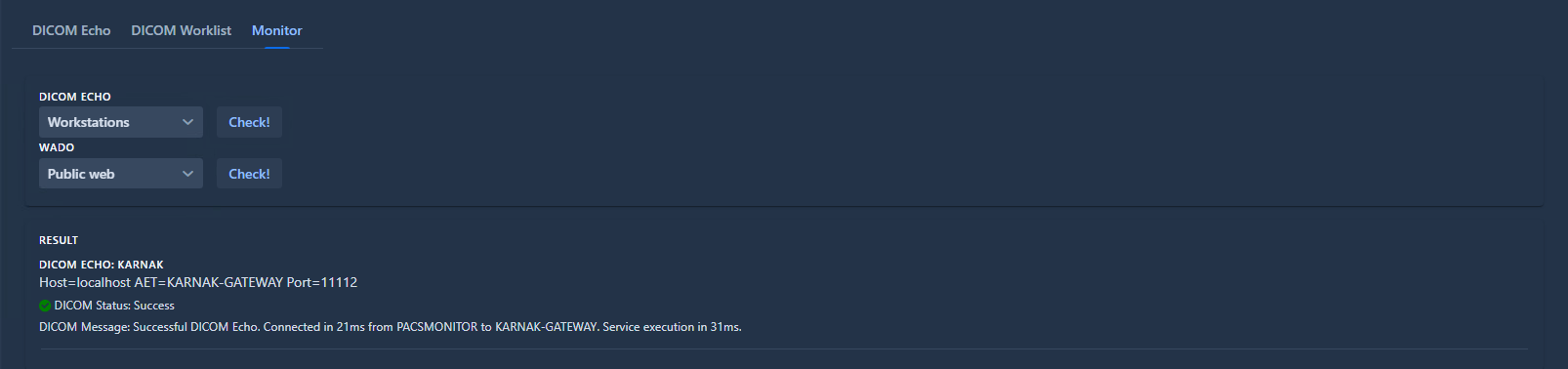
Below is an example of a successful DICOM Echo monitoring test:
WADO Monitoring
To test WADO connectivity:
- Select a DICOM node from the list
- Navigate to the WADO tab
- Click the Check button to launch the WADO test
Below is an example of a successful WADO test:

Info
The Monitor tool is useful for regular health checks of your DICOM infrastructure and can help identify connectivity issues before they impact production workflows.