Projects
This page lists all projects configured in Karnak and lets you create, edit, and delete them. A project is linked to a profile and contains a secret used for de-identification.

1. Create a project
To create a new project:
- Enter a name.
- Select a profile.
- Click Add.
The project is added to the list and its details appear in the right panel.
2. Project list
All available projects are listed in the left panel.
Selecting a project displays its details on the right.
3. Project details
In the details view you can:
- Change the project name.
- Change the de-identification profile.
Click Update to save your changes.
4. Project secret
The project secret is central to Karnak’s de-identification process.
It is a 32-character hexadecimal value.
- A secret is automatically generated when the project is created.
- In the details view, the secret is shown along with its creation date and time.
You can generate a new secret by clicking Generate Secret. When you do this:
- Previous secrets are kept in the database.
- You can select any previous secret to use again.

Warning
Changing the project secret can cause data consistency issues between old and new de-identified DICOM instances. Use this feature with caution and only when necessary.
A destination is associated with a project for de-identification, as described in the Destination configuration.
To generate new values like UIDs and pseudonymize some patient information, Karnak uses a hash function seeded with the project secret. This makes the generated values unique per project and deterministic as long as the secret does not change.
Implications of changing the secret:
- If a DICOM instance is de-identified twice using the same project, secret, and profile, the resulting de-identified instances are identical.
- If the secret changes, de-identifying the same DICOM instance again with the same project and profile but the new secret will produce different de-identified instances.
Details about the algorithm and UID generation using the project secret are available here.
5. Action buttons
- Click Update to save any change made to a project.
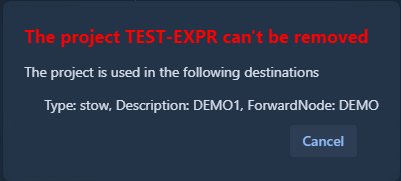
- Click Remove to delete the selected project.
If the project is associated with a destination, deletion fails and an error message is displayed.